
Promotions Committee members can monitor student Competencies in VSTAR.
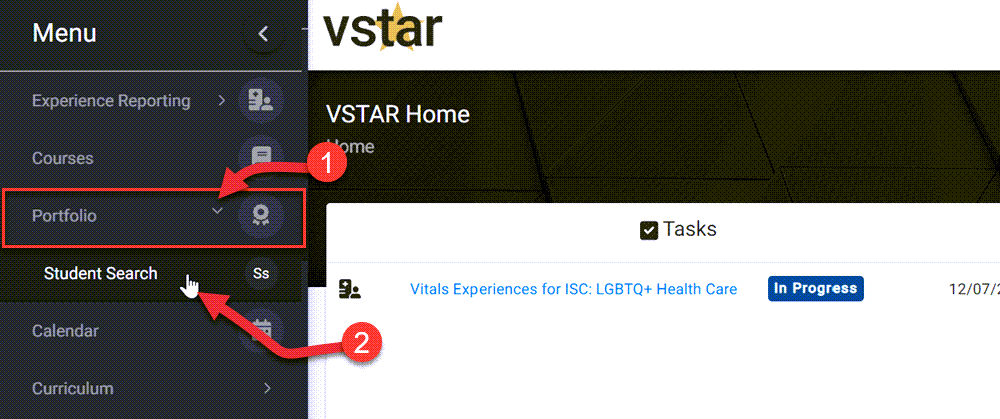
Promotions Committee members can search assigned students by navigating to the Portfolio tab located on the left navigation pane, clicking on the Portfolio drop-down and selecting Student Search. Promotions Committee members can use all of the same functions that are available to a Portfolio Coach
First, navigate to VSTAR Next and locate Portfolio tab located on the left navigation menu:
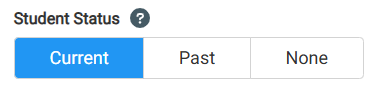
The Student Portfolio view allows you to filter students by Current, Past and None (in this instance ‘None’ refers to all other students like Visiting Students). The buttons will turn gray when selected.
(If you already know how to search students you can skip ahead.)
When students are listed, you can also filter by Phase, Graduation Years, and/or First Name and Last Name:
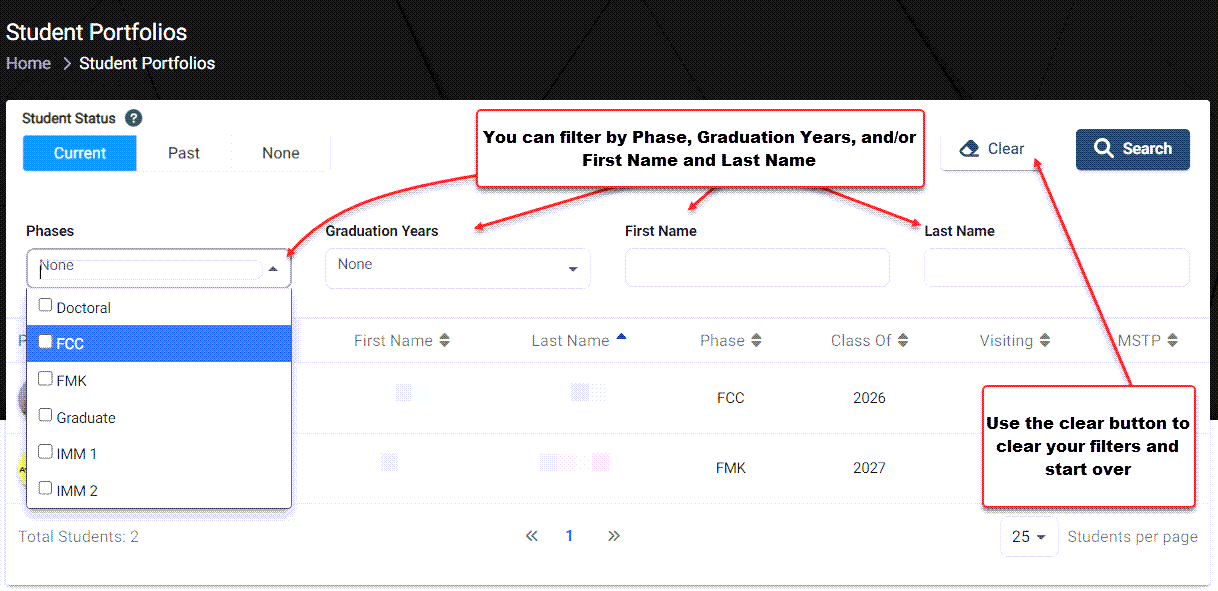
Once you have selected how to search you must click the search button.
Use the Clear button to clear your filters and start over.
You can also sort First Name, Last Name, Phase, Class Of, Visiting, MSTP or LOA (leave of absence). These maybe used with or without filters.
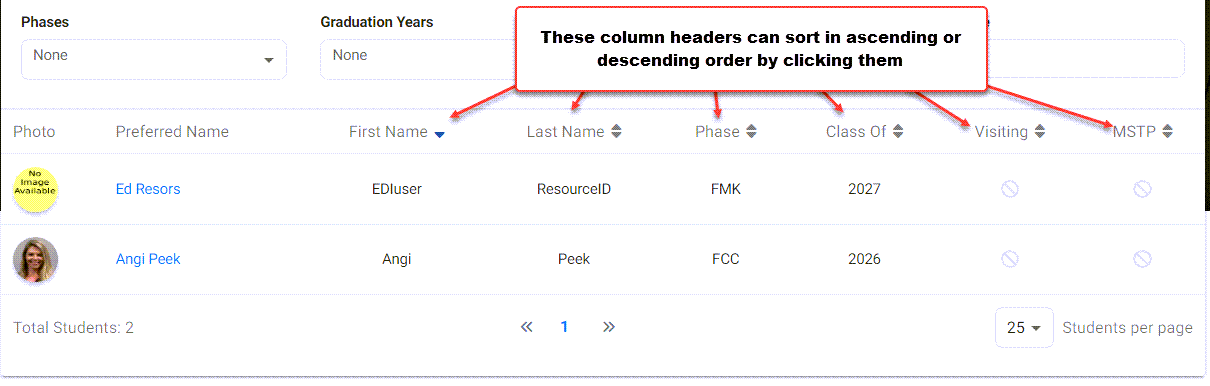
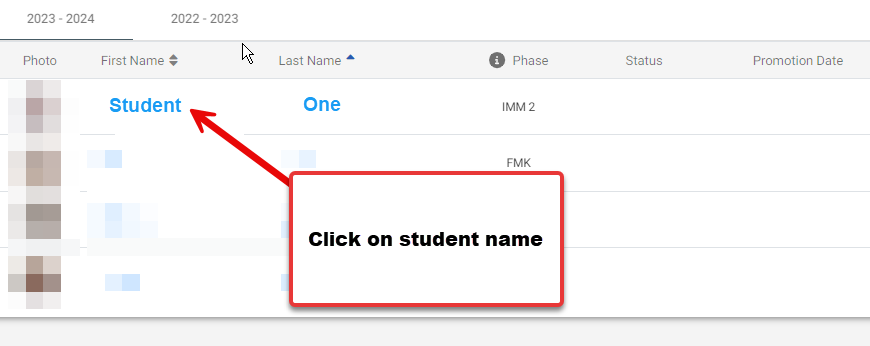
Find the student whose Competencies you wish to view and click on their name:
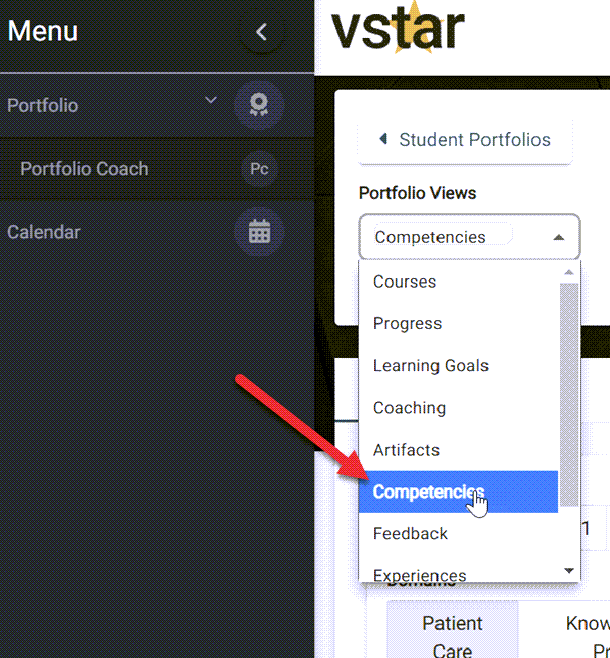
When you have a student chosen, click on the “Portfolio Views” drop-down menu and choose Competencies:
You should now see something like this:
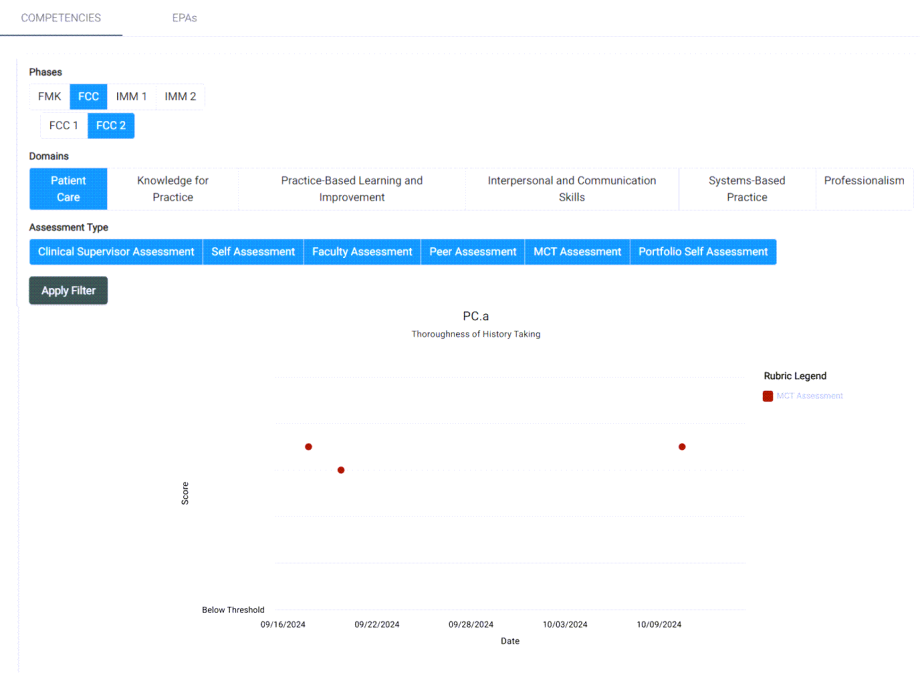
You can select which Phase, Domain, and Assessment Type you wish to view. Of these only Assessment type can have multiple selections chosen at the same time, but you may wish to narrow down the selections to see fewer data points or specific types of assessments. You can narrow down the selection to a specific course, otherwise all courses for your selection will show. 
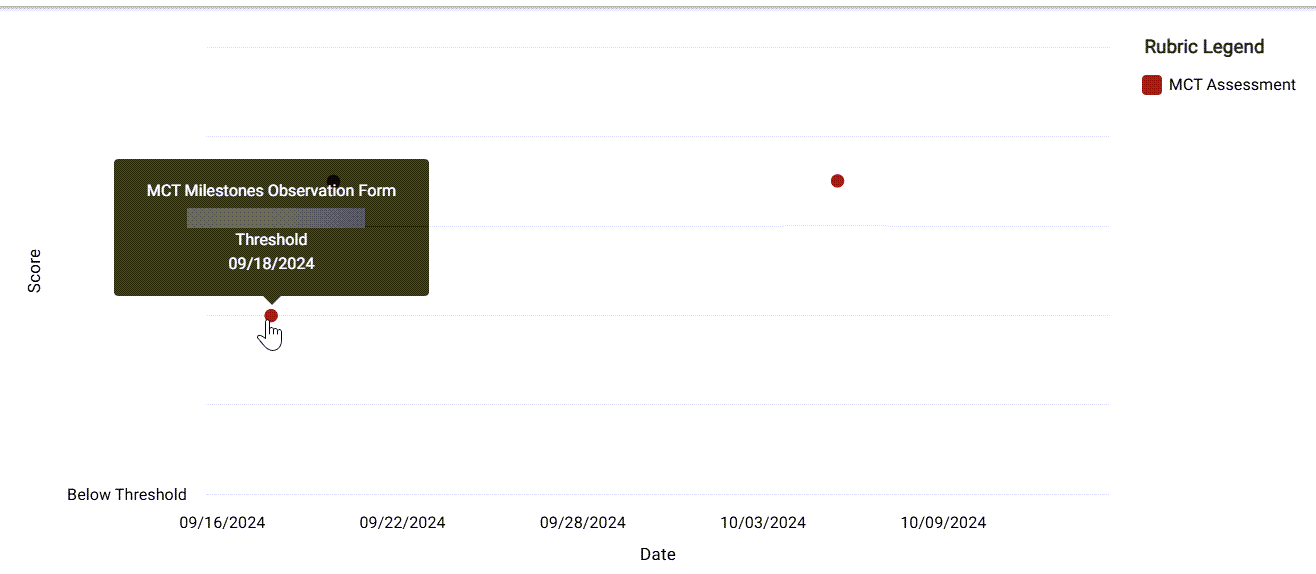
You can hover over a data point to see more information. If you click on the data point, it will open up the applicable assessment.

See Promotions Committee for more Help articles.